
I Am Attending Poster Maker
Create an I am attending poster by opening a template, uploading your photo and downloading your personalised image. Clip Mask keeps the event artwork around your portrait, so you can announce your plans without editing the original design.
Browse i am attending templatesHow does it work?
Clip Mask is a browser tool that lets people add their photos to a design prepared by a template creator. The creator controls the surrounding artwork and shares one link; each participant chooses the portrait that appears in their own image.
- Open a template. Choose a design from the template directory or follow the link your organiser sent. Check that the event and wording match what you want to share.
- Upload and position your photo. Select a clear portrait and adjust its position within the prepared photo area. Review the whole poster so important details and your face are visible together.
- Download and share. Save the finished image, then attach it to a post or message in your preferred app. Add a personal caption and check the destination’s crop before publishing.
What is an I am attending poster?
An I am attending poster is a personal event announcement that combines an attendee’s photo with the event’s artwork. It gives people a way to tell friends and colleagues where they plan to be. The organiser prepares the design, including the event name and dates, and shares a template link. Each participant adds their own portrait to produce an image that belongs to the same campaign. The result can accompany a short message explaining why they are going and inviting others to learn about the event.
How should organisers prepare the invitation?
Start with the event details people need to recognise: the name, date and visual identity. Give the photo area enough space for different portraits and keep essential text outside it. If the artwork says I will be attending, confirm that it is intended for attendees. Speakers, sponsors and volunteers may need their own wording and separate links. Test the design with a real portrait, check the download on a phone, and distribute the link with a short explanation of what participants should do.
What should I write when sharing my poster?
Add a personal caption about what you want to learn, who you hope to meet or why the event matters to you. A useful announcement includes a link to the official event page so friends can find current information. Keep ticket purchases and confirmations in the organiser’s registration system: making an I am attending card does not reserve a place. If you are using the image as an I am attending DP, preview the platform’s circular crop before changing your profile picture. Keep your face and the most useful event detail near the centre.
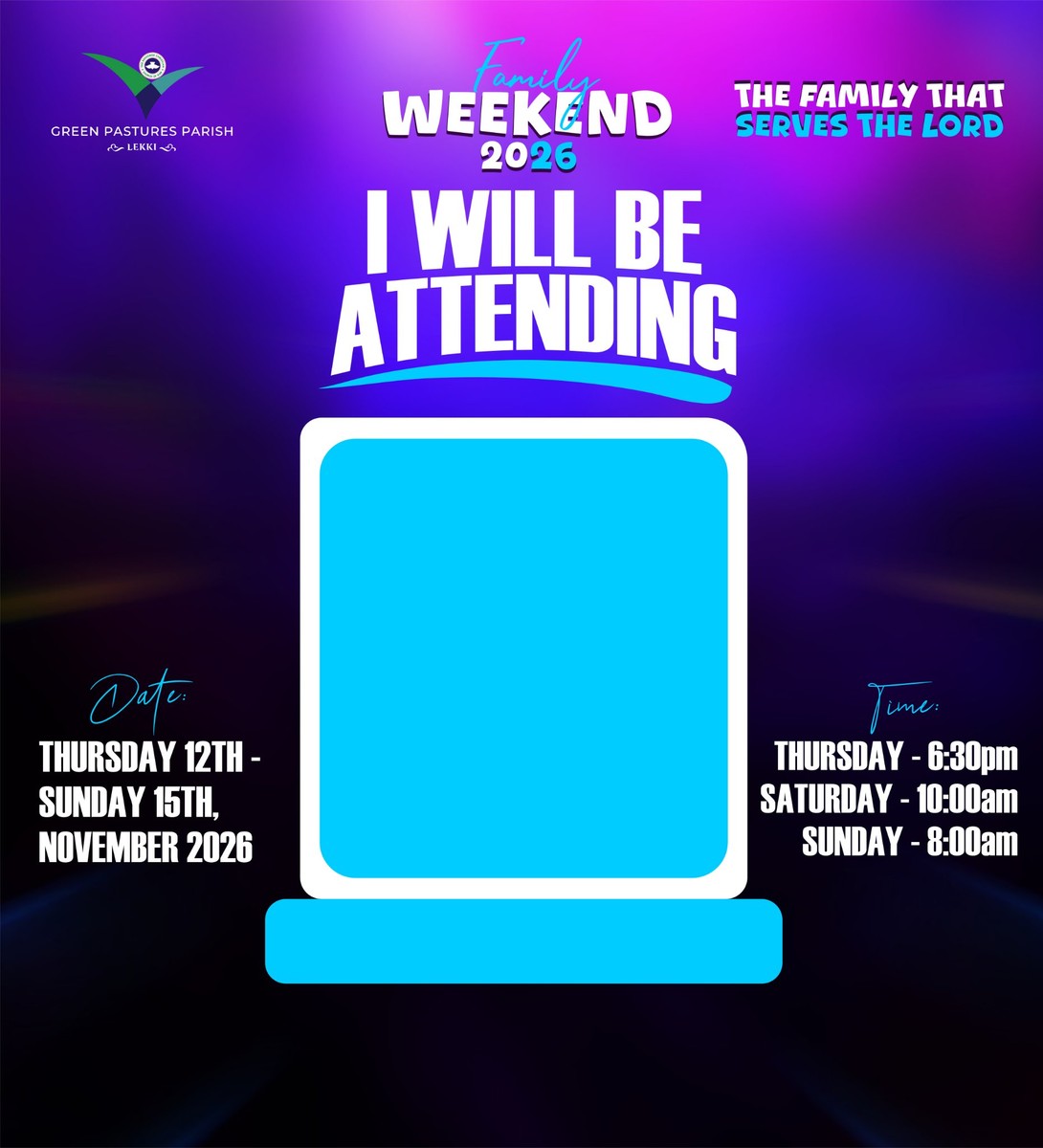
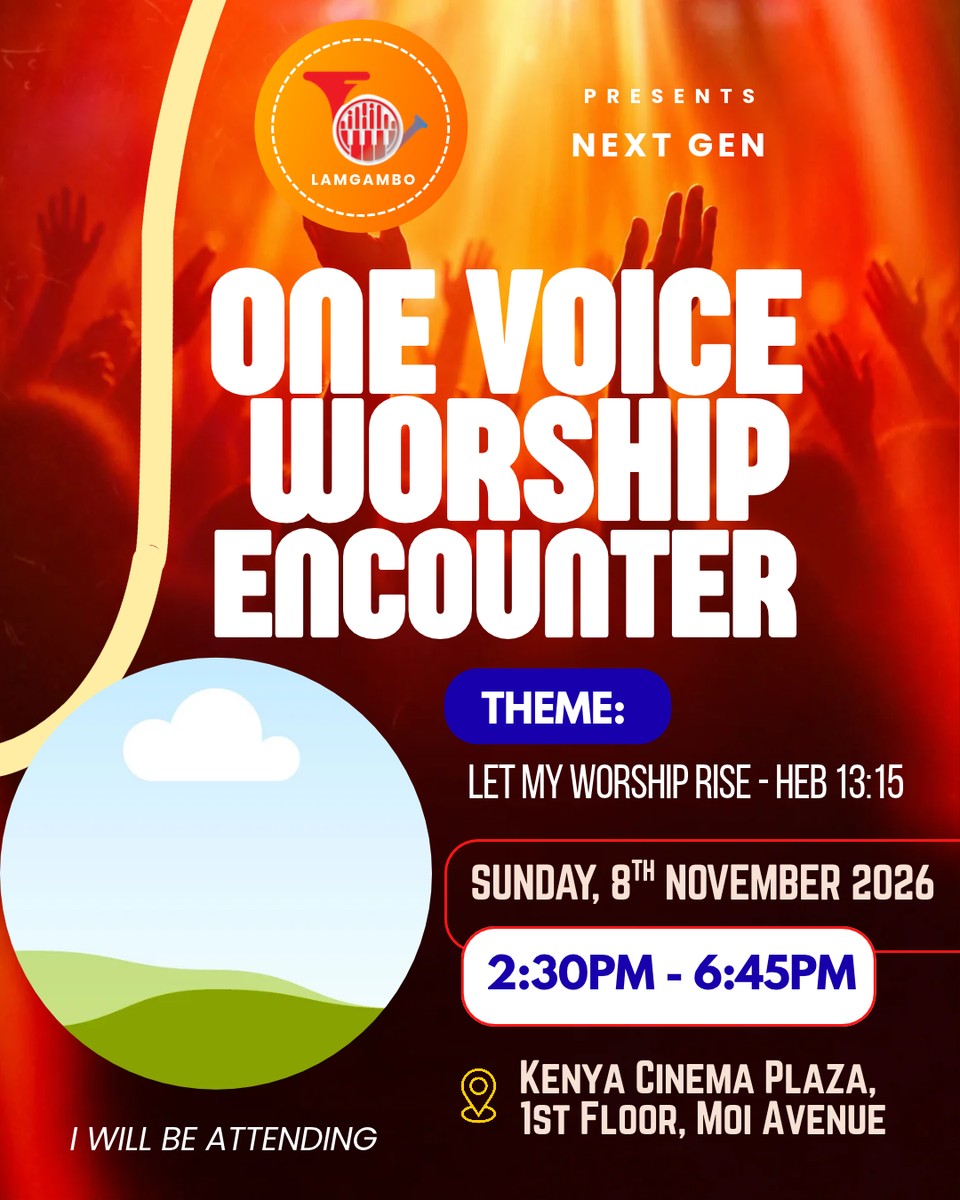
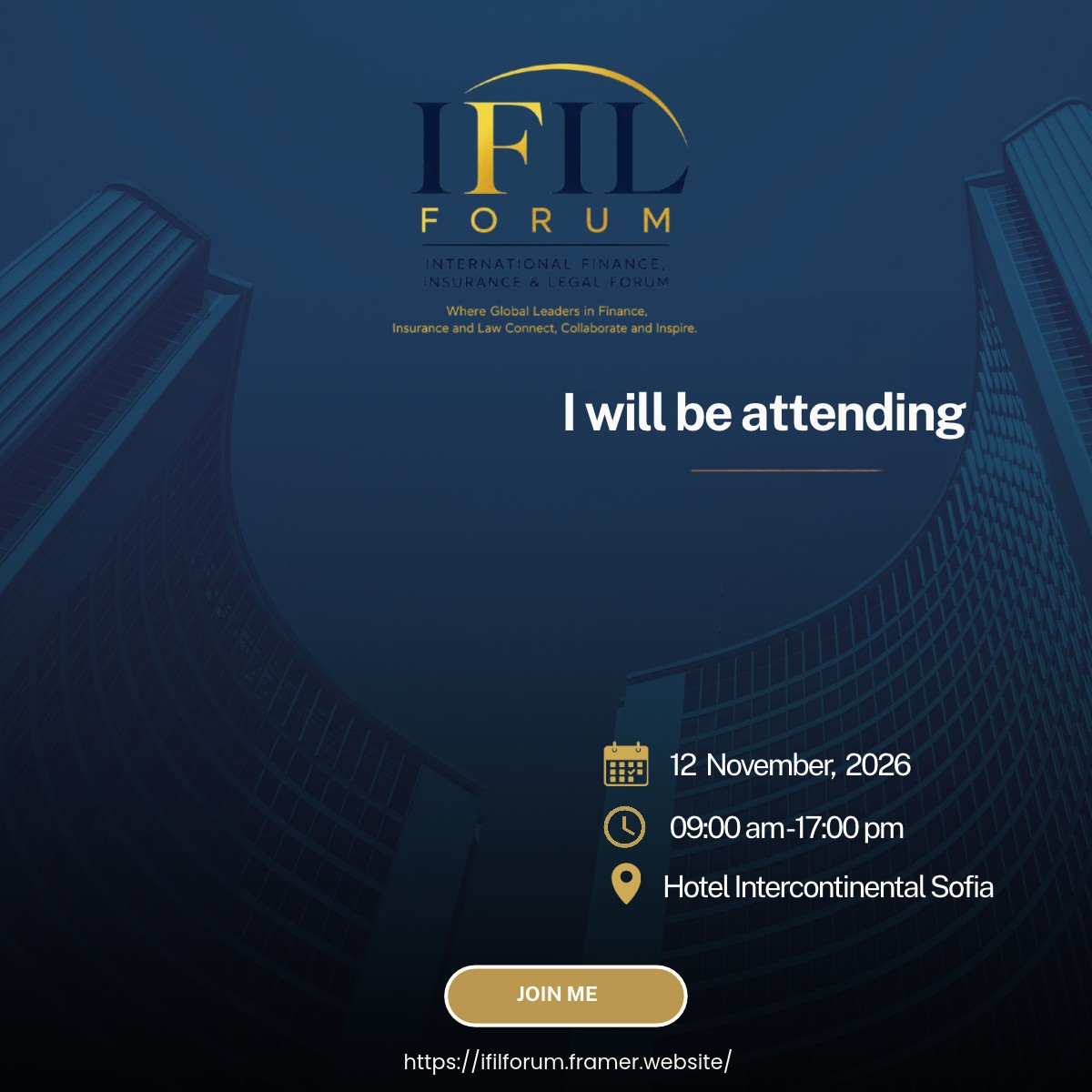
Example i am attending templates
Browse the category →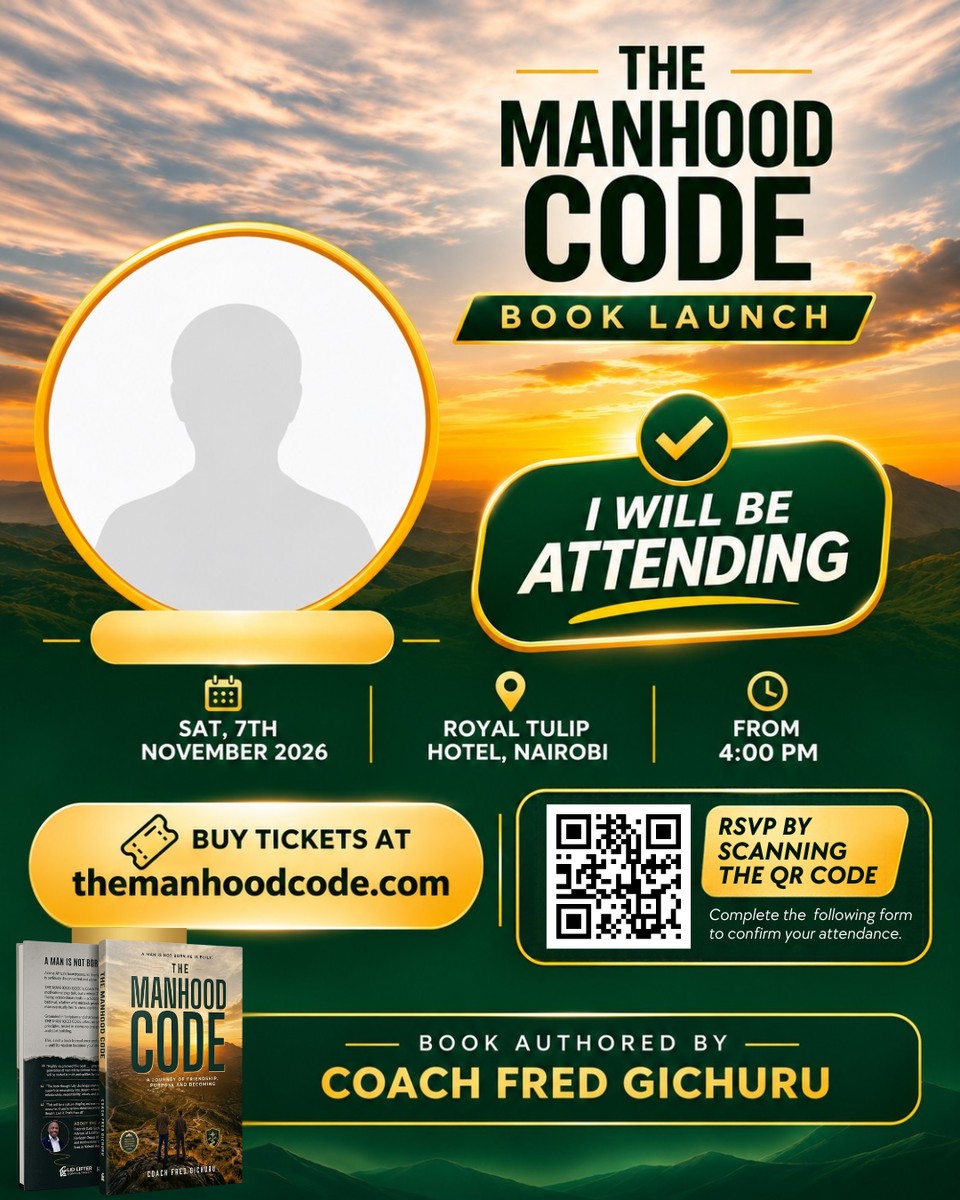

One link for your community
Give participants a straightforward route from invitation to personalised image: one shared link, their own photo and a downloadable result. The design keeps its original branding while people choose how to take part. Creators prepare and manage the template; participants can use it without an attendee signup or an installed editing application. Preview your artwork with different photos before publishing, and keep a plain text invitation available for people who prefer not to share a portrait.
Frequently asked questions
How do I use the i am attending poster maker?
Open a published template, upload a photo and adjust its position in the prepared area. Check the preview, then download your personalised image. The original artwork around the photo stays in place, so you do not need to recreate the design.
Do participants need to sign up or install an app?
No. Participants can personalise a published shared template in their browser without an attendee account. Creators sign in to prepare and manage templates. Use a current browser and choose a photo that you have permission to upload and share.
Is creating a template free?
Creator allowances and paid packs are described on the Plans page. Personalising a shared template does not require an attendee account. Availability can depend on the creator’s allowance and template settings, so check the current plans before organising a larger campaign.
Can I use my own artwork and branding?
Yes. As a creator, upload your poster artwork and define where participant photos should appear. Keep important text and logos outside the photo area, then preview the design before publishing. Make sure you have permission to use the artwork and any branding it contains.
Does Clip Mask post the finished image for me?
No. Download your result and share it through your chosen app or account. You control the caption and audience. Check the destination platform’s preview because profile pictures, stories and feed posts may crop the same image differently.
What if the shared link is unavailable?
The creator may have paused the template or reached its allowance, or the template may have been removed. Ask the organiser for a current link. Avoid relying on the poster as the only source of event information, and keep the official event page available for updates.
Create your own poster template
Prepare your artwork, mark the photo areas and share one link. See current creator allowances before starting your campaign.